WHAT'S NEW?
Loading...
Showing posts with label Kali Linux. Show all posts
MAC Address Spoofing
MAC addresses are a unique identifier associated to every network interface, wired or wireless. They are used to identify devices on a physical network.
MAC spoofing is the technique to effectively change the MAC address that your network interface appears to have.Macchanger is a tool included with Kali Linux and can change the MAC address to any desired address until the next reboot. Changing MAC address is not a simple task if we consider doing it in any other operating systems. But in Kali Linux we can use Macchanger tool to do so.
HOW TO:-
Our first task is to take down the network adapter for the network. To do so we can use the command:
  • ifconfig wlan1 down
Replace wlan1 with your own network adapter.
Then we need to change the MAC address or replace the MAC address with some random MAC address by using the command:
  • macchanger -r wlan1
As shown on the screenshot, Macchanger will show you the permanent, current and changed MAC address. The permanent MAC Address will be restored to your network adapter after reboot or you can reset your network adapters MAC address manually. Use the following command to restore the permanent MAC address to your network adapter manually:
  • macchanger –permanent wlan1
You can also spoof a particular MAC address using the following command:
  • macchanger -m [Spoofing MAC Address] wlan1
  • macchanger -m XX:XX:XX:XX:XX:XX wlan1
If you receive the following error you need to take down the network interface first before changing the MAC Address (Command: ifconfig wlan1 down):
  • ERROR: Can’t change MAC: interface up or not permission: Cannot assign requested address
Use the following command to bring up your network adapter with the new MAC address:
  • ifconfig wlan1 up
Now in the ending we can use the following command to show the current MAC address:
  • macchanger –show wlan1
The Pentbox is a safety kit containing various tools for streamlining PenTest conducting a job easily. It is programmed in Ruby and oriented to GNU / Linux, with support for Windows, MacOS and every systems where Ruby is installed. In this small article we will explain how to set up a honeypot in Kali Linux. If you don’t know what is a honeypot, “a honeypot is a computer security mechanism set to detect, deflect, or, in some manner, counteract attempts at unauthorized use of information systems.”

Download Pentbox:

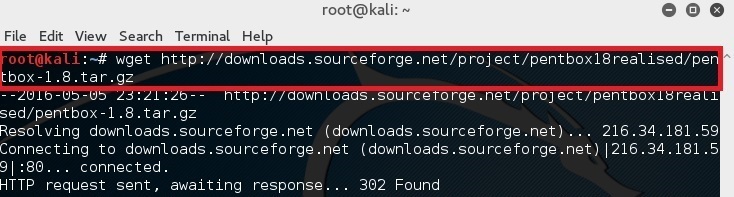
Simply type in the following command in your terminal to download pentbox-1.8.
root@kali:~# wget http://downloads.sourceforge.net/project/pentbox18realised/pentbox-1.8.tar.gz
Set up a honeypot in Kali Linux - blackMORE Ops - 1

Uncompress pentbox files

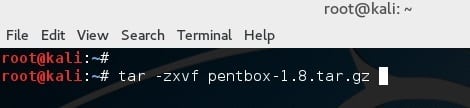
Decompressing the file with the following command:
root@kali:~# tar -zxvf pentbox-1.8.tar.gz
Set up a honeypot in Kali Linux - blackMORE Ops - 2

Run pentbox ruby script

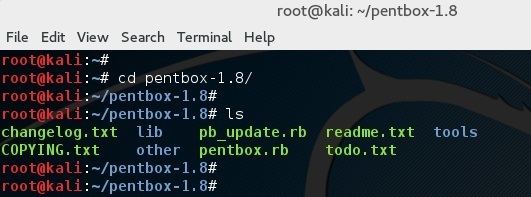
Change directory into pentbox folder
root@kali:~# cd pentbox-1.8/
Set up a honeypot in Kali Linux - blackMORE Ops - 3
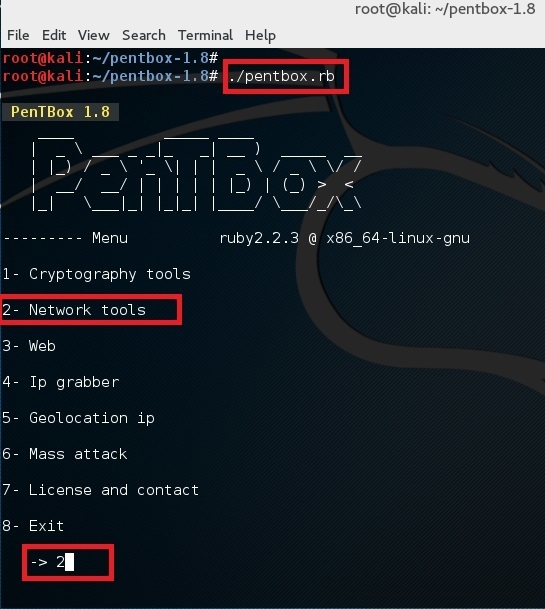
Run pentbox using the following command
root@kali:~# ./pentbox.rb
Set up a honeypot in Kali Linux - blackMORE Ops - 4

Setup a honeypot

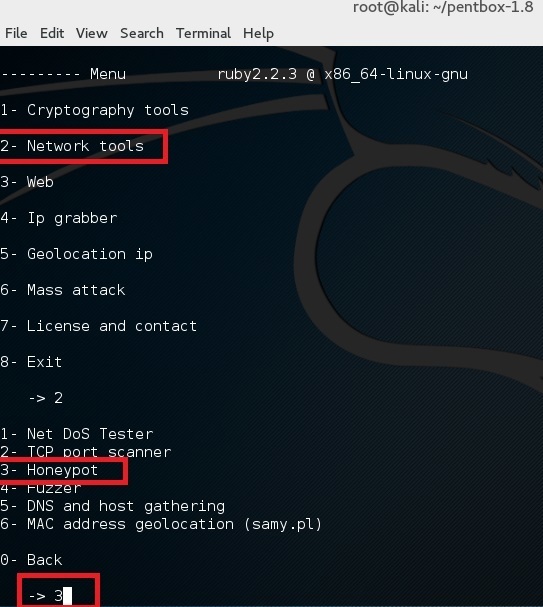
Use option 2 (Network Tools) and then option 3 (Honeypot).
Set up a honeypot in Kali Linux - blackMORE Ops - 5
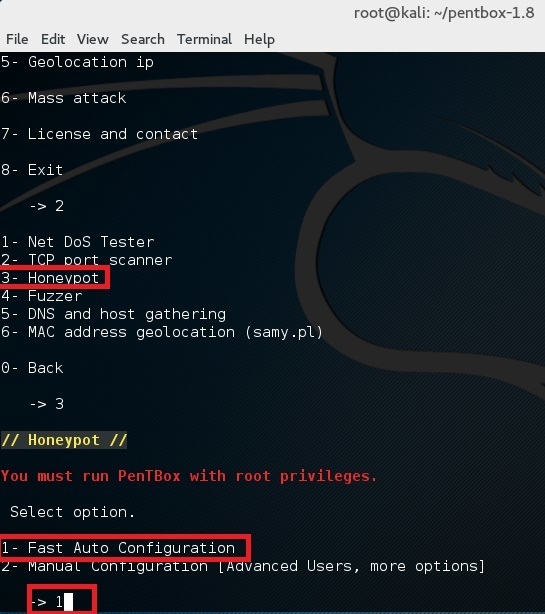
Finally for first test, choose option 1 (Fast Auto Configuration)
Set up a honeypot in Kali Linux - blackMORE Ops - 6
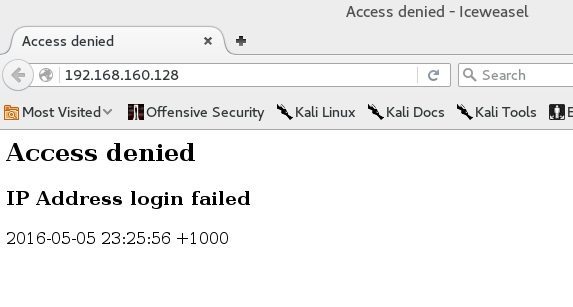
This opens up a honeypot in port 80. Simply open browser and browse to http://192.168.160.128 (where 192.168.160.128 is your IP Address. You should see an Access denied error.
Set up a honeypot in Kali Linux - blackMORE Ops - 7
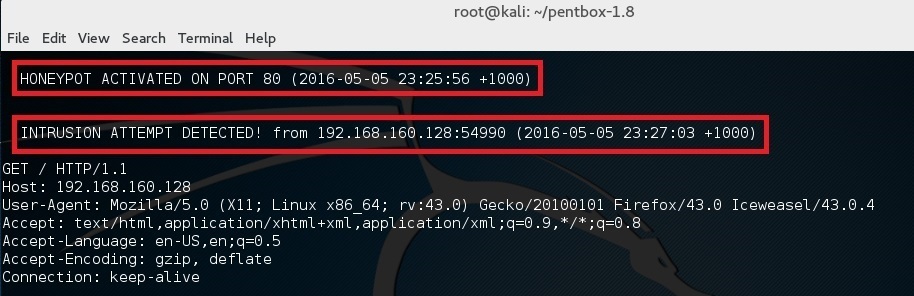
and in the terminal you should see “HONEYPOT ACTIVATED ON PORT 80” followed by “INTRUSION ATTEMPT DETECTED”.
Set up a honeypot in Kali Linux - blackMORE Ops - 8.
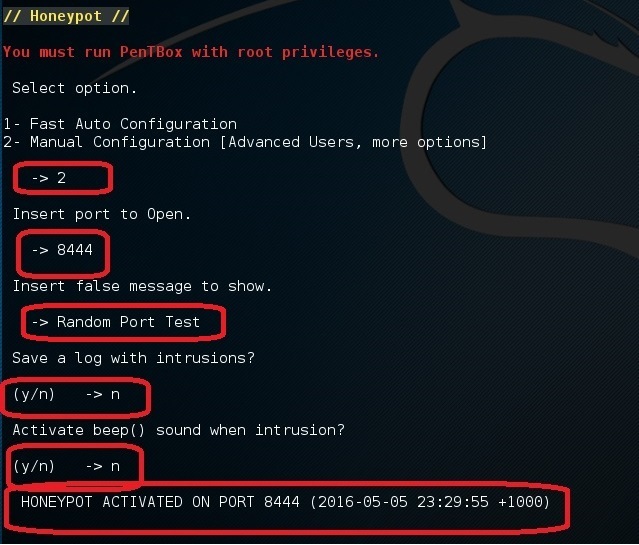
Now, if you do the same steps but this time select Option 2 (Manual Configuration), you should see more extra options
Set up a honeypot in Kali Linux - blackMORE Ops - 9
Do the same steps but select port 22 this time (SSH Port). Then do a port forwarding in your home router to forward port external port 22 to this machines’ port 22. Alternatively, set it up in a VPS in your cloud server.
You’d be amazed how many bots out there scanning port SSH continuously. You know what you do then? You try to hack them back for the lulz!
Here’s a video of setting up honeypot if video is your thing: